Reports
Guardr produces three types of reports: a weekly summary email sent to all active users, downloadable PDF security reports on Starter+ and before/after scan comparison PDFs on Pro+.
1 — Weekly summary email
Guardr sends a weekly summary email every Monday to all users with at least one active site. The email is sent automatically — there is no manual trigger. You can unsubscribe at any time from Dashboard → Settings → Email Preferences → Weekly Summary or via the unsubscribe link in the email.
What the email contains
The content varies by plan. Free users receive a condensed view; paid users receive the full breakdown.
| Section | Free | Solo+ |
|---|---|---|
| Security grade and score | Yes | Yes |
| 7-day uptime percentage | Yes | Yes |
| SSL expiry days remaining | Yes (no alert) | Yes (color-coded) |
| Issues shown | Top 3 critical/high titles only | Top 5 issues with severity and "+N more" link |
| Fix instructions | No | No (link to dashboard) |
| Scans run this week | No | Yes |
| Upgrade nudge | Yes | No |
Fix instructions are not included in the weekly email. To see remediation steps open the full scan result in your dashboard.
2 — PDF security reports
Starter+
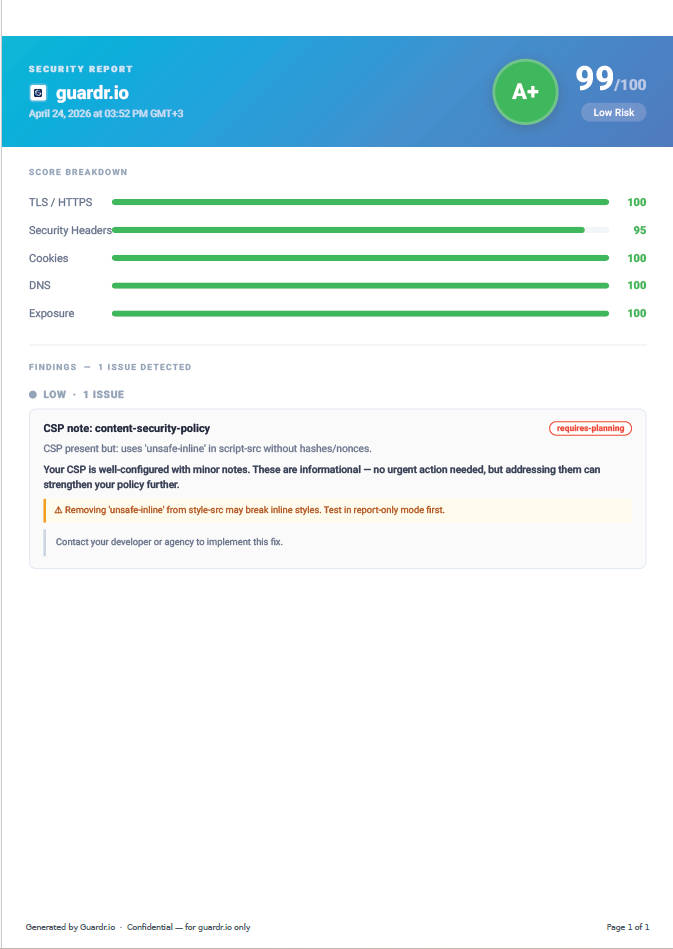
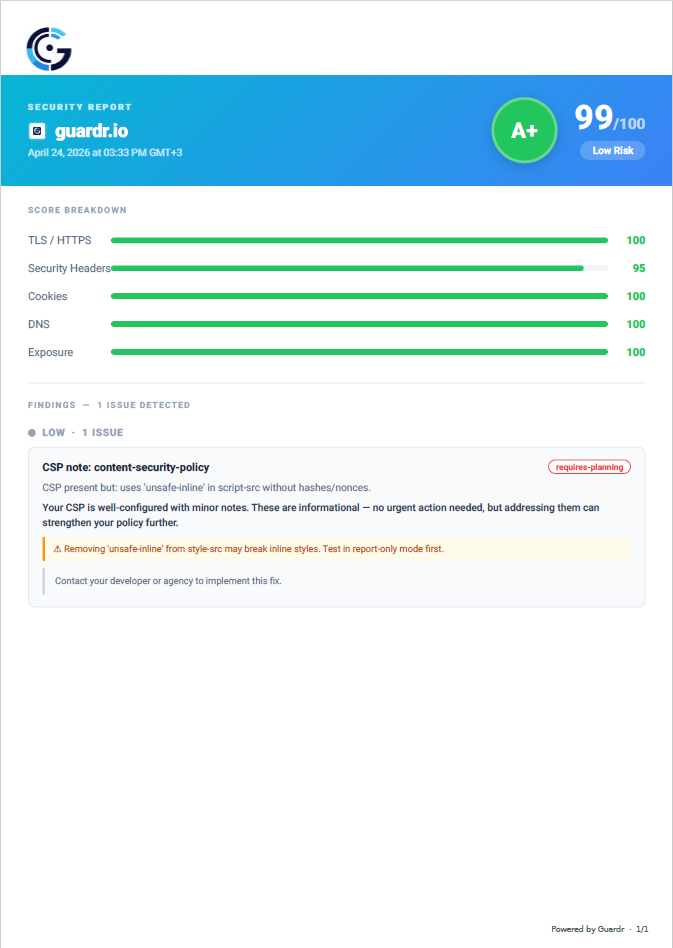
PDF reports are generated from a live scan result and downloaded directly from the dashboard. Each PDF is rendered via headless Chrome and formatted for A4 printing or sharing with clients.
How to generate a PDF
- Open a site from Dashboard → Sites.
- Click the Download Report button in the page header, next to the Scan Now button.
- The PDF generates from the latest scan result and downloads immediately.
What the PDF contains
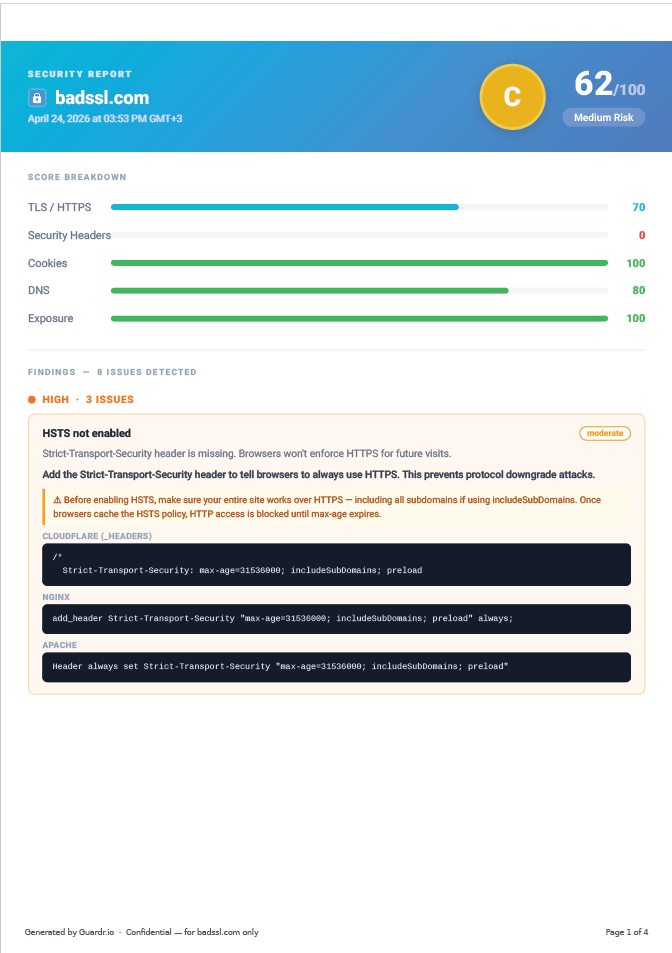
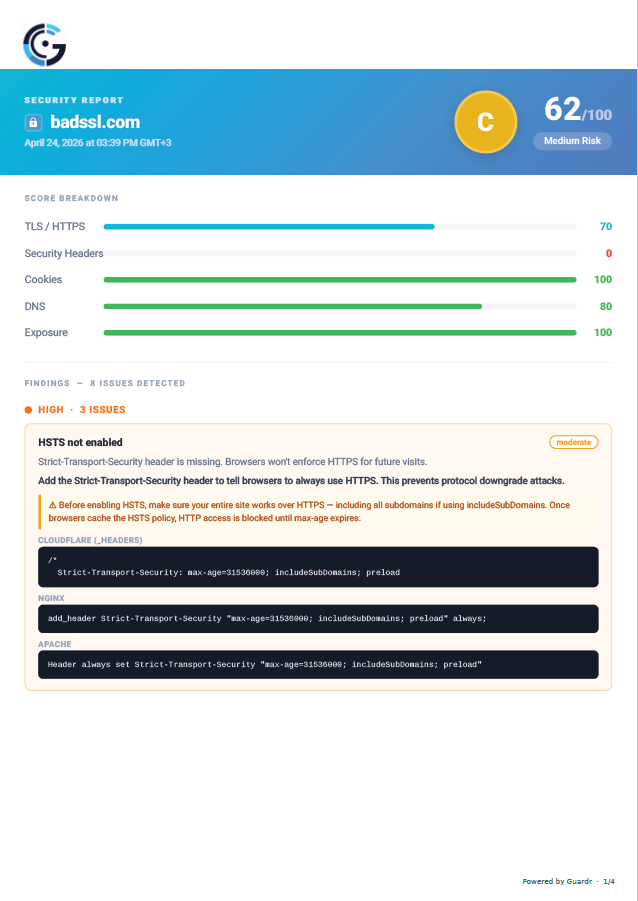
Every PDF report includes the following sections in order:
- Header — domain name, scan date and time, A–F grade circle and overall score out of 100
- Score breakdown — a bar for each of the five scan categories (TLS/HTTPS, Security Headers, Cookies, DNS and Exposure) with its numeric score
- Exposed secrets banner — shown only if API keys were found in JavaScript bundles; lists the secret type, masked value and the bundle URL it was found in
- Findings — all issues grouped by severity (critical, high, medium and low), each with a description and remediation summary
Remediation detail by severity
Code snippets showing exactly how to fix an issue are included for critical and high severity findings only, with platform-specific instructions for Cloudflare, Nginx and Apache. Medium and low findings include a remediation summary but no code snippets.
Filename format
Downloaded files are named guardr-[domain]-[date].pdf, for example
guardr-guardr.io-2026-04-25.pdf.
3 — Before/after scan comparison
Pro+
The comparison report lets you select any two scans for the same site and generate a PDF showing exactly what changed between them. Guardr automatically determines which scan is "before" and which is "after" based on their timestamps.
How to generate a comparison
- Open a site from Dashboard → Sites.
- Scroll to the Scan History section.
- Click the Compare button in the top-right of Scan History. This requires at least 2 scans.
- Check two scans from the list using the checkboxes that appear.
- Click Compare scans to open the comparison view.
The comparison report always places the older scan on the left (Before) and the newer scan on the right (After) — regardless of the order you select them. The score delta and issue changes reflect what happened between the two scans.
If your score went down between scans the report shows new issues introduced in red. If your score went up it shows fixed issues in green.
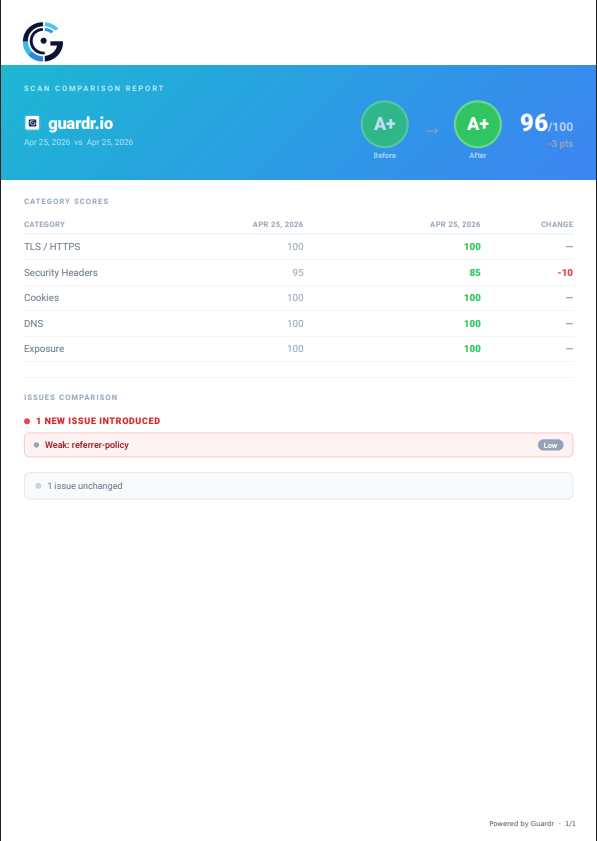
Example: a new issue was introduced between two scans — Security Headers dropped from 95 to 85 and the score fell from 99 to 96.
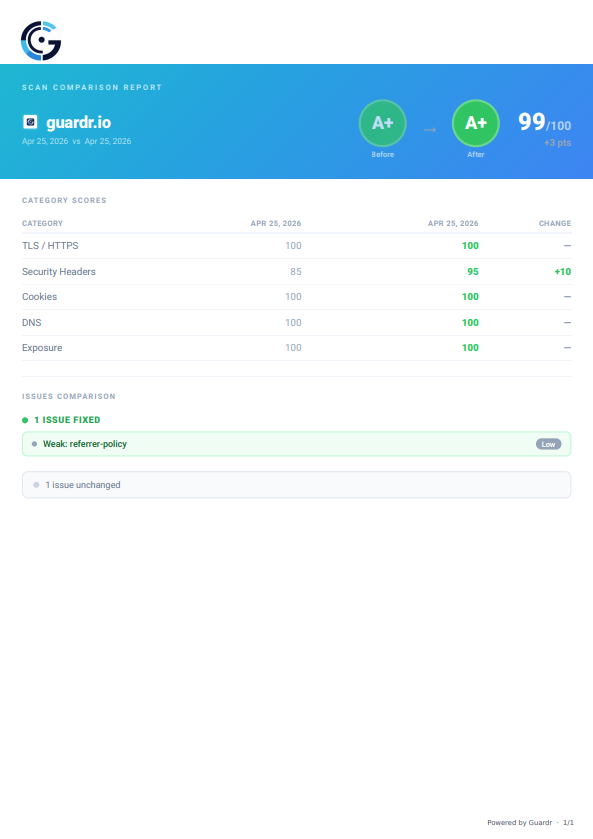
Example: the issue was fixed in the next scan — Security Headers recovered from 85 to 95 and the score returned to 99.
What the comparison PDF contains
- Header — domain, the two scan dates, before/after grade circles with an arrow showing direction of change and the score delta
- Category scores table — before score, after score and numeric change for each of the five categories
- Issues comparison — three groups: issues that were fixed (green), new issues introduced (red) and a count of issues unchanged between the two scans
Filename format
Comparison files are named guardr-[domain]-compare-[date].pdf, for example
guardr-mako.co.il-compare-2026-04-25.pdf.
4 — Branded PDF reports
Pro+
On Pro and Agency plans you can upload your agency logo. When a logo is present it appears in the header of every PDF report and comparison report you generate, replacing the default Guardr footer with "Powered by Guardr".
How to upload your logo
- Go to Dashboard → Settings and scroll to the Brand Logo section.
- Click Choose PNG and select your file.
- Click Save Logo. You'll see a confirmation: "Logo saved — appears on new PDF reports."
To remove your logo click Remove in the same section. PDFs generated after removal revert to the standard Guardr footer.
The examples below use the Guardr logo for illustration. On your account the top-left will show your own uploaded logo.
Logo requirements
- Format: PNG only (SVG is not supported)
- Maximum file size: 100 KB
- Display size in PDF: up to 180 × 50 px — upload at least that resolution for a sharp result
Try it on your site — free
Free scan, no signup required. Upgrade when you need alerts, history, or PDF reports.
Scan your site →